
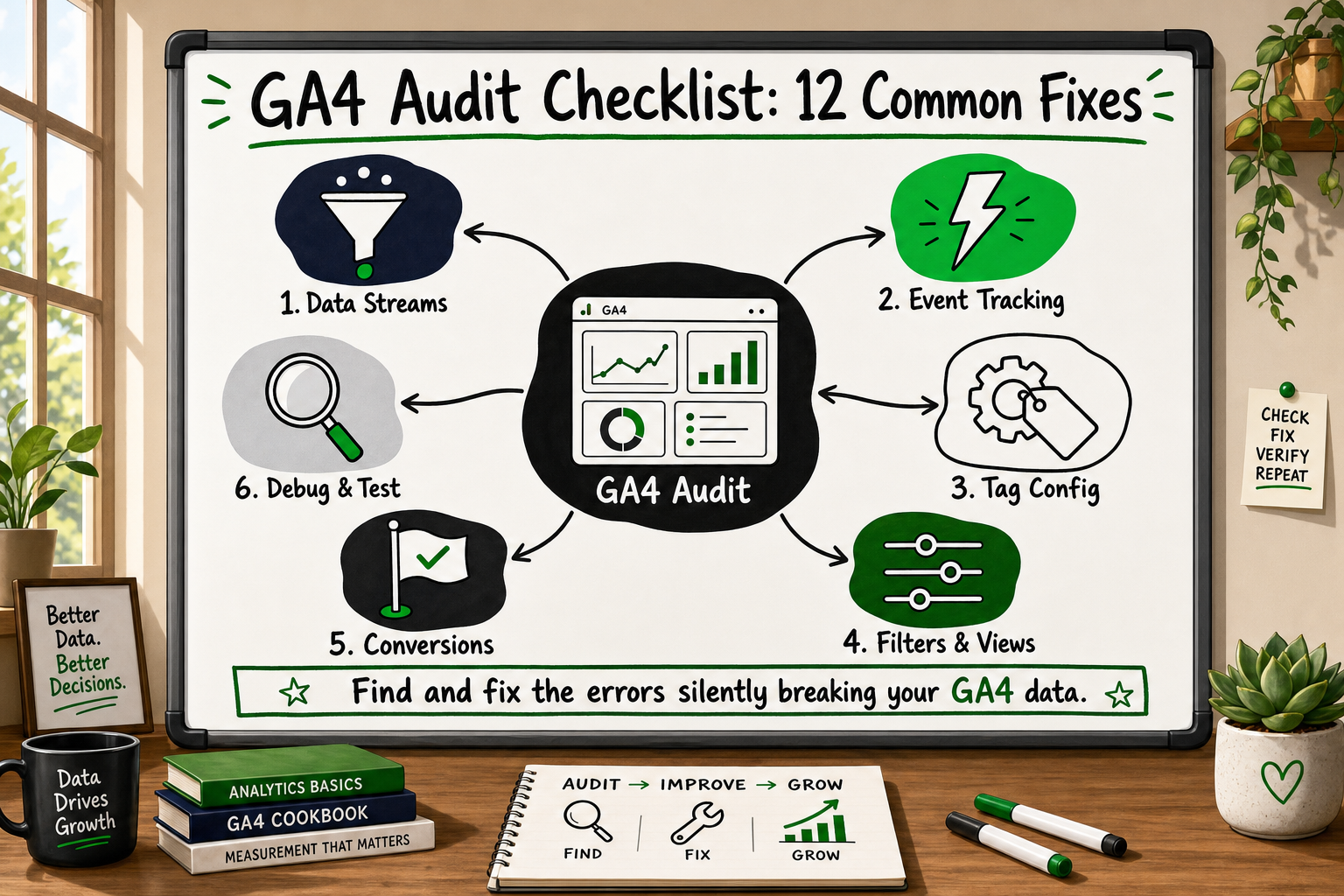
If you have GA4 installed but your conversion numbers look suspiciously low, you are not imagining it. A broken GA4 setup is one of the most common — and most costly — problems our team encounters during client onboarding. This GA4 audit checklist walks you through 12 structured checks you can complete in a single hour, so you know exactly what is working, what is broken, and where to focus your fix.
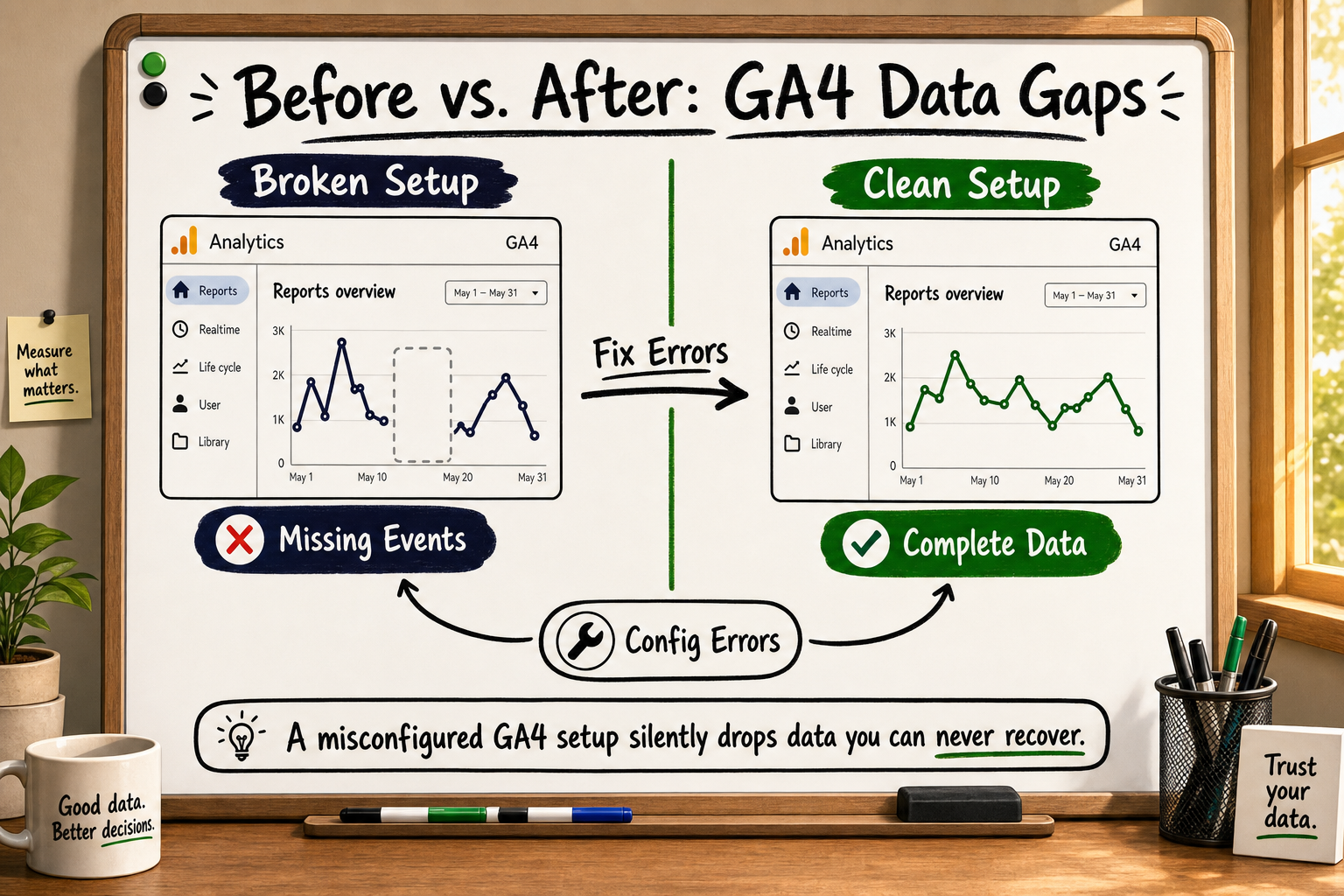
Why GA4 Audits Matter More Than Most Founders Realise
The 40–60% data gap problem
Most teams install GA4, confirm the tag fires on the homepage, and assume they are done. That assumption is expensive. Across client analytics audits, our team has identified a consistent pattern: GA4 accounts with default configurations lose between 40% and 60% of trackable events [VERIFY] due to a combination of ad blocker interference, iOS privacy changes, misconfigured tags, and missing filters.
That is not a minor rounding error. It means that when you look at your reports, nearly half the picture may be missing — silently, with no warning in the interface.
Event Tracking Analytics: A Founder's Guide
How bad data misleads paid media and product decisions
The downstream consequences are serious. If your GA4 reports show 60 purchases when the real number is 110, your cost-per-acquisition looks twice as bad as it actually is. You might pause a campaign that was working, or double down on a channel that is underperforming. Product teams face the same problem: if your funnel drop-off data is incomplete, you will optimise the wrong step.
A one-hour audit does not fix everything, but it identifies the breaks fast — and prioritises the fixes that recover the most data.
Before You Start: What You Need for This Audit
Access requirements
Before you open a single GA4 screen, confirm you have:
- Editor access (or higher) in your GA4 property
- Publish access in Google Tag Manager (GTM)
- Admin access to your website CMS or the ability to inspect page source
- A browser with the GA4 DebugView Chrome extension installed [Source: Google Analytics Developers]
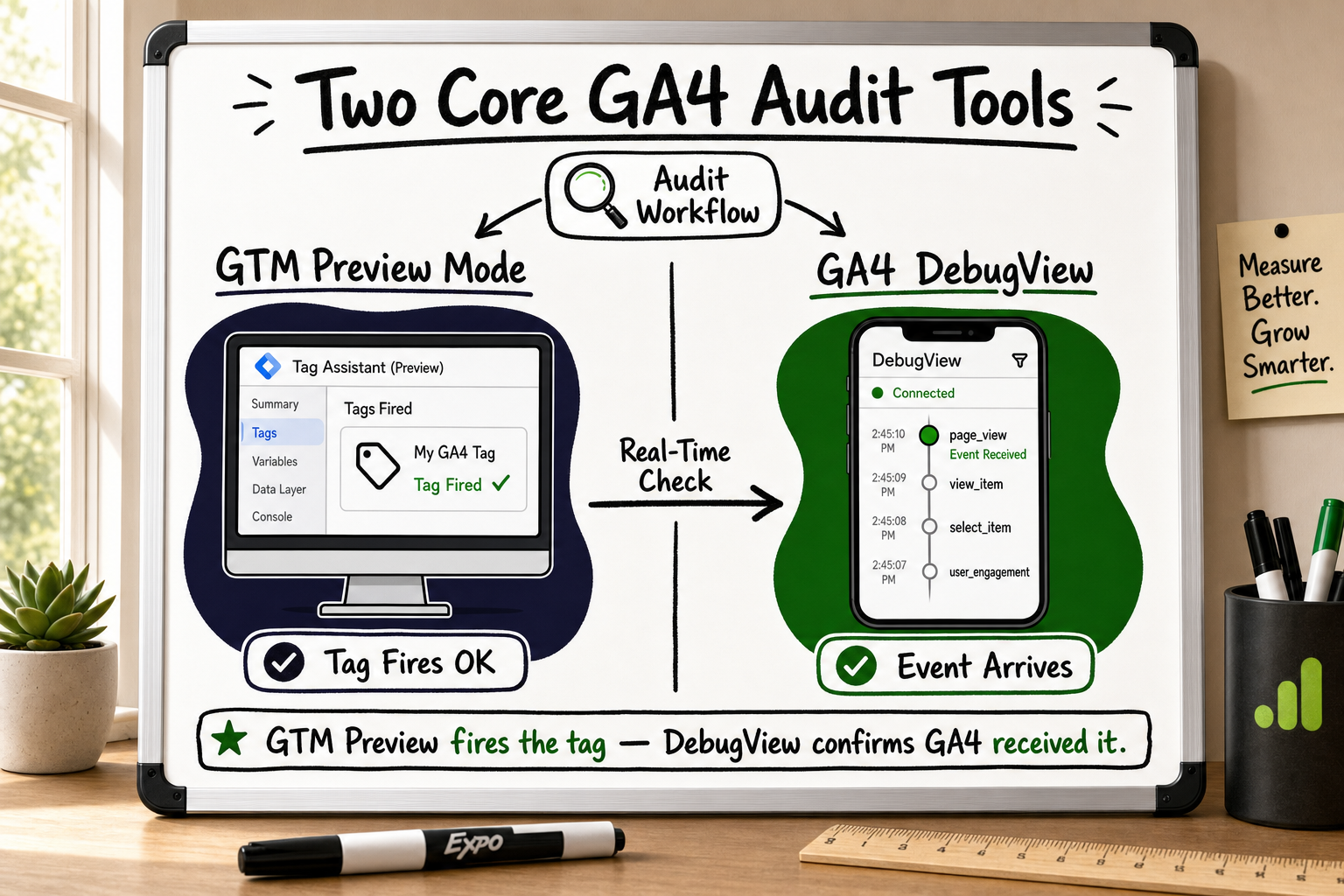
Tools: DebugView, GTM Preview, and the GA4 real-time report
- GTM Preview mode: Activates a debug overlay showing exactly which tags fire on each page interaction.
- GA4 DebugView: Shows events arriving in your GA4 property in real time, event by event. Navigate to Admin → DebugView in your property.
- GA4 Real-Time report: A quick sanity check — if your own visit does not appear, the tag is not working.
Our team uses this exact preparation checklist at the start of every analytics onboarding engagement, because starting without the right access wastes more time than the audit itself.
What counts as a passing result for each check
Each check below has a clear pass/fail. A pass means the configuration is working as intended. A fail means it is either broken or needs investigation before you trust the data it produces.
The 12-Point GA4 Audit Checklist
1. Confirm your Measurement ID is on every page
What to check: Your GA4 Measurement ID (format: G-XXXXXXXXXX) must load on every page of your site — not just the homepage.
How to check it: Use GTM Preview or right-click → Inspect → Network tab, filter for collect?v=2. Navigate to at least five pages including your checkout or conversion page.
Common failure: The tag is hardcoded on template pages but missing on dynamically generated pages such as blog posts, product pages, or confirmation screens.
Pass: Measurement ID fires on all tested pages. Fail: Any page returns no collect network request.
2. Check data stream settings and enhanced measurement
What to check: In GA4 → Admin → Data Streams, confirm you have an active web data stream and that Enhanced Measurement is turned on.
Enhanced measurement captures: page views, scrolls, outbound clicks, site search, video engagement, and file downloads — automatically, without custom events.
Common failure: Enhanced measurement is off, meaning only manual page_view events are tracked and everything else is invisible.
Pass: Stream status shows active; Enhanced Measurement toggle is on. Fail: Stream shows no data in the last 48 hours, or Enhanced Measurement is disabled.
3. Verify Google Tag Manager is firing without errors
What to check: Open GTM Preview mode and load your site. Look for any tags showing a red "Not Fired" or error state for your GA4 Configuration tag.
Common failures:
- Trigger is set to fire on a specific page class that no longer matches your URL structure
- Tag has a typo in the Measurement ID field
- A consent mode block is preventing the tag from loading (see check 9 for internal filters)
Pass: GA4 Configuration tag shows "Fired" on every page load. Fail: Tag shows "Not Fired", "Blocked", or an error message.
4. Test events in DebugView before trusting reports
What to check: With the DebugView extension active, complete a key user action on your site (add to cart, form submit, click a CTA). Open GA4 → Admin → DebugView and confirm the event appears within 30 seconds.
Why this matters: GA4 reports aggregate data with a processing delay of up to 24–48 hours. DebugView is the only way to validate in real time.
Pass: Custom events appear in DebugView within 30 seconds of being triggered. Fail: Events are missing, duplicated, or show unexpected parameter values.
5. Audit your conversion events — are the right ones marked?
What to check: Go to Admin → Conversions. Confirm that your highest-value events (purchase, lead form submit, trial signup) are toggled on as conversions.
Common failures:
- Generic events like
clickorscrollare marked as conversions, inflating your conversion count - Your actual purchase event is not marked at all
- You have duplicate conversion events from both a GA4 event and an imported Google Ads goal
Pass: Only intentional, high-value events appear as conversions; no generic events included. Fail: Conversions include generic events, or your primary conversion event is absent.
6. Check cross-domain tracking configuration
What to check: If users move between two domains during a session (e.g. your marketing site on yoursite.com and a checkout on checkout.yoursite.com or a third-party platform), cross-domain tracking must be configured.
How to check it: Admin → Data Streams → your stream → Configure tag settings → Configure your domains. Add all domains users traverse.
Common failure: Sessions break at domain boundaries, so a user arriving from a paid ad and completing a purchase appears as two separate sessions — your acquisition channel is lost.
Pass: All relevant domains are listed; UTM source is preserved across the full session. Fail: Source appears as (direct) for users who came from a paid channel after crossing a domain boundary.
7. Confirm Google Signals is enabled (and understand the trade-off)
What to check: Admin → Account Settings → Google Signals → enable if not active.
What it does: Google Signals enables cross-device reporting and demographic data by connecting sessions across Google-signed-in users.
The trade-off: When a dimension segment has fewer than a threshold number of users, GA4 applies data thresholding and redacts those rows — this can actually reduce visible data in some reports. Enable it, but be aware of the threshold effect on small-traffic properties.
Pass: Google Signals is enabled; you understand it may trigger thresholding on low-volume reports. Fail: Google Signals is off, missing cross-device attribution data.
8. Inspect your referral exclusion list
What to check: Admin → Data Streams → Configure tag settings → List unwanted referrals.
Why this matters: Payment processors (Stripe, PayPal, Square) and your own subdomains will appear as referral traffic if not excluded. This breaks your attribution — a sale attributed to PayPal instead of the Google Ad that drove the original visit.
Pass: All payment processors and internal subdomains are listed as unwanted referrals. Fail: You see paypal.com or your own domain in the Acquisition → Traffic Acquisition report as a top referral source.
9. Audit internal traffic filters
What to check: Admin → Data Filters → confirm an "Internal Traffic" filter exists and is in Active state (not Testing).
How to create one: Define your office IP address(es) in Admin → Data Streams → Configure tag settings → Define internal traffic. Then create a Data Filter to exclude that traffic.
Common failure: The filter exists but is still in "Testing" mode, meaning internal traffic is still included in all reports and inflating your session counts.
Pass: Filter is active; your own visits do not appear in reports. Fail: Filter is in Testing mode or does not exist.
10. Check your data retention settings
What to check: Admin → Data Settings → Data Retention. Confirm this is set to 14 months (the maximum), not the default 2 months.
Why this matters: With 2-month retention, you cannot run Explorations (custom reports) on data older than 60 days. You lose year-on-year comparison capability in your most flexible reporting tool.
Pass: Data retention is set to 14 months. Fail: Retention is set to 2 months — change this immediately, as it cannot be retroactively applied to already-purged data.
11. Test for event deduplication issues
What to check: In DebugView, complete one conversion action (e.g. submit a form). Count how many times the conversion event appears. If it appears more than once for a single action, you have a deduplication problem.
Common causes:
- GTM is sending the event AND a hardcoded on-page script is also sending the same event
- Both GA4 and Google Ads conversion tags are counting the same event
Why this is serious: Duplicate events double your reported conversions. Smart Bidding in Google Ads optimises toward false signals and wastes budget.
Pass: Each conversion action produces exactly one event in DebugView. Fail: The same event fires two or more times for a single user action.
How Ad Blockers Wreck Your Conversion Data (And the Fix)
12. Validate server-side vs client-side event coverage
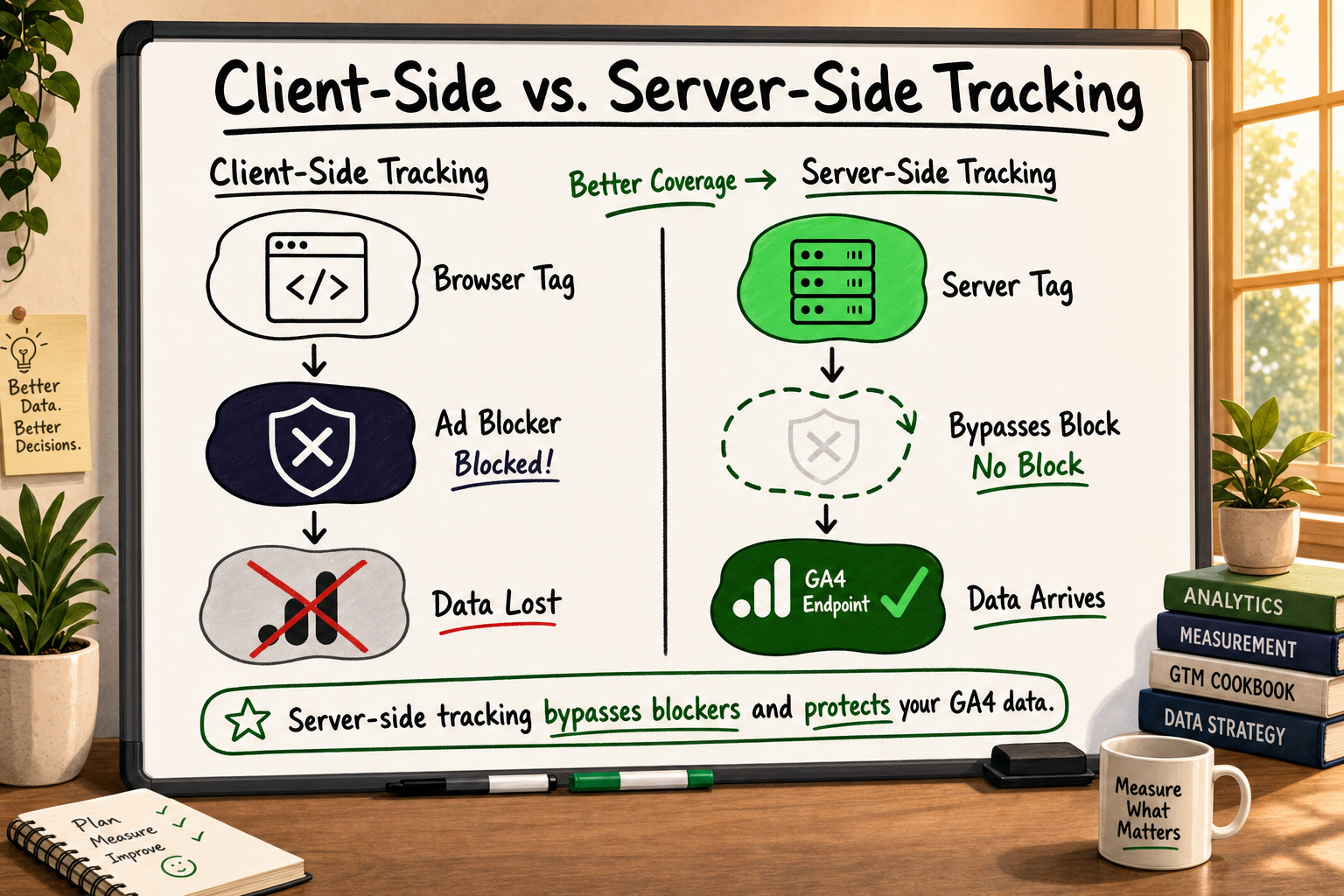
What to check: Identify which of your conversion events rely entirely on the browser (client-side) to send data to GA4. These events are vulnerable to ad blockers, iOS Intelligent Tracking Prevention, and browser crashes.
How to check it: In GTM, review your GA4 tags. If all of them use a Web container with no Server container configured, your tracking has no fallback when a user's browser blocks the request.
The fix: Move high-value conversion events to a GTM Server container, which sends data from your server directly to GA4 — bypassing ad blockers entirely. [Source: Google Analytics Developers]
Pass: At least your primary conversion events send data via server-side, with client-side as a supplement. Fail: All events are client-side only with no server-side fallback.
What Is Meta Conversions API? A Guide for Marketers
The Three Fixes That Recover the Most Data
After completing the 12-point checklist, most setups have several issues. Here is where to start if you need to prioritise.
Fix 1: Switch critical conversions to server-side
This single change recovers more data than any other. Ad blockers affect an estimated 27–40% of desktop users [VERIFY], and iOS privacy restrictions suppress client-side signals further. Moving your purchase and lead events to a GTM Server container means these conversions are captured regardless of what the user's browser does.
The setup requires a server-side GTM container, a subdomain pointing to your container (e.g. t.yoursite.com), and updated GA4 tags routing through that container. It is not a one-click fix, but the data recovery is material and permanent.
Fix 2: Remove duplicate tags sending double events
Duplicate events are silent. Your reports look healthy — in fact they look great — while your Smart Bidding is optimising against fiction. Audit your GTM Web container and your page source code simultaneously. Search for the string gtag or your Measurement ID in your site's JavaScript. If it appears both in GTM and hardcoded in your theme or CMS, remove the hardcoded version and let GTM be the single source.
Fix 3: Correct your referral exclusions
This fix takes five minutes and immediately improves attribution accuracy. Add every payment processor your checkout touches, plus any subdomain users visit during a session. After saving, wait 48 hours and check the Acquisition → Traffic Acquisition report. You should see paid channels (Google / CPC, Meta / cpc) appearing where PayPal or your own domain previously sat.
FAQ: GA4 Audit Common Questions
How do I know if my GA4 is set up correctly? A correctly configured GA4 property shows events firing on every page in DebugView, has its primary conversion events marked, filters out internal traffic, and has data retention set to 14 months. If any of those four are wrong, your data is unreliable.
Event Tracking Analytics: A Founder's Guide
Why is GA4 showing less traffic than expected? The most common causes are ad blockers stripping client-side requests, iOS Intelligent Tracking Prevention suppressing referral data, missing tags on non-template pages, and incorrect or missing referral exclusions breaking session continuity. Check points 1, 6, 8, and 12 on the checklist first.
What is the fastest way to fix GA4 data loss? In order: confirm the Measurement ID fires on all pages (check 1), mark the correct events as conversions (check 5), then migrate your most important conversion events to server-side (check 12 and Fix 1). These three steps alone recover the majority of lost data for most setups.
Does GA4 work with server-side tracking? Yes. GA4 supports a server-side implementation via Google Tag Manager's Server container. Instead of the user's browser sending data directly to Google's collection endpoint, your server acts as the intermediary — making the request invisible to ad blockers. Setup requires a dedicated subdomain and a server-side container, but the configuration is well-documented by Google. [Source: Google Analytics Developers]
How often should I audit my GA4 setup? Run a full audit at initial launch, after any significant site update (new checkout flow, CMS migration, new campaign landing pages), and at minimum once per quarter. Site updates silently break tags more often than most teams realise — a new page template may not inherit GTM correctly, losing weeks of conversion data before anyone notices.
Can I use this GA4 audit checklist alongside a Universal Analytics migration? Universal Analytics is fully deprecated. If you are still referencing UA data, you are working from a historical snapshot. Use this checklist to validate your GA4 property is capturing clean data going forward — the structure and event model are different enough that a direct migration comparison is rarely meaningful.
How Decyb Technology LLP Approaches GA4 Audits and Analytics Infrastructure
The 12 checks above cover the most common failure points, but completing a checklist and actually fixing the underlying infrastructure are two different things. This is where the work our team does differs from a standard agency analytics engagement.
What our analytics audit covers
Decyb's analytics audit process uses a structured template built from years of identifying GA4 configuration errors across client properties in SaaS, eCommerce, and fintech. The audit goes beyond checking whether tags fire — it maps every tracked event against the business decisions that event is supposed to inform. If your purchase event is firing but your funnel steps are missing, the conversion data is technically present but strategically useless.
For clients who need it, we also implement server-side GA4 tracking via a GTM Server container, including full event deduplication to ensure each conversion is counted exactly once across client and server payloads. Our Meta Conversions API implementation work — which carries a ★ 5.0 client review — uses the same deduplication methodology, and we apply it consistently to GA4 server-side setups. The before/after data completeness improvement for clients moving from client-side-only tracking to a server-side setup is consistently significant [VERIFY with client-specific data].
Why accurate data changes how you spend and build
When your conversion data is 40–60% incomplete, every decision downstream is made on a distorted picture. Paid media budgets get allocated to the wrong channels. Product teams fix the wrong funnel steps. Investor reporting understates actual user engagement. Our team has worked with growth-stage companies — including a B2B wholesale marketplace now serving 40,000+ retailers across Australia and New Zealand — where clean, reliable analytics infrastructure was as important to the business outcome as the product features themselves.
An accurate measurement stack is not a nice-to-have for a funded startup. It is the foundation that makes every other growth experiment meaningful.
How to Evaluate a Software Development Partner: 9 Criteria
What the engagement looks like
For founders and growth teams who want external help rather than a self-serve fix, Decyb offers a server-side tracking and analytics setup service covering Meta CAPI, GA4, and GTM — scoped to your specific stack. Engagements start with a discovery call where a senior partner reviews your current setup, identifies the highest-priority breaks, and proposes a fix plan with a clear timeline and fixed price.
With over 12 years of consistent ★ 5.0 delivery across international client engagements, our approach is to explain every decision, document every configuration, and hand you a setup you can understand and maintain — not a black box that only we can interpret.
If you suspect your GA4 data is incomplete, the first step is a conversation. Book your free 24-hour strategy call — no cost, no obligation — and our team will tell you within one session what is broken, what it is costing you, and what fixing it involves.
Book your free strategy call — get a plan in 24 hours →
All project timelines and delivery estimates are indicative and subject to scope confirmation. Third-party service costs (hosting, domains, SaaS tools) are billed separately at cost. Decyb Technology LLP is registered in India; engagements are subject to terms of service available at decyb.com/terms.